---
title: How to do an initial NeckCare sensor calibration
description: Learn how to perform the initial advanced calibration of the NeckCare sensor using the Movella DOT mobile app to ensure accurate and reliable measurements.
---
[Skip to content](https://help.neckcare.com/how-to-do-an-initial-neckcare-sensor-calibration#main-content)
-1.png?height=20&name=NeckCare%20Logo_big%20(1)-1.png)
Open main navigation
Close main navigation
- [Request Support](mailto:support@neckcare.com)
[Request Support](mailto:support@neckcare.com)
We're here to help...
- There are no suggestions because the search field is empty.
1. [Help Center](https://help.neckcare.com/?hsLang=en)
2. [Sensor Calibration](https://help.neckcare.com/sensor-calibration?hsLang=en)
# How to do an initial NeckCare sensor calibration
The first step in using your NeckCare sensor is to perform an **initial calibration**, also known as **advanced calibration**. This calibration is necessary to ensure accurate 3D orientation calculations by compensating for any magnetic disturbances in your environment, such as magnets, ferromagnetic materials, or strong electrical currents.
This process needs to be completed only once when you first set up the sensor, or whenever you move to a new location or leave the device unattended for a while. While **basic calibration** will be done daily through the NeckCare platform, **advanced calibration** is required for the initial setup and periodically when significant changes occur in the environment.
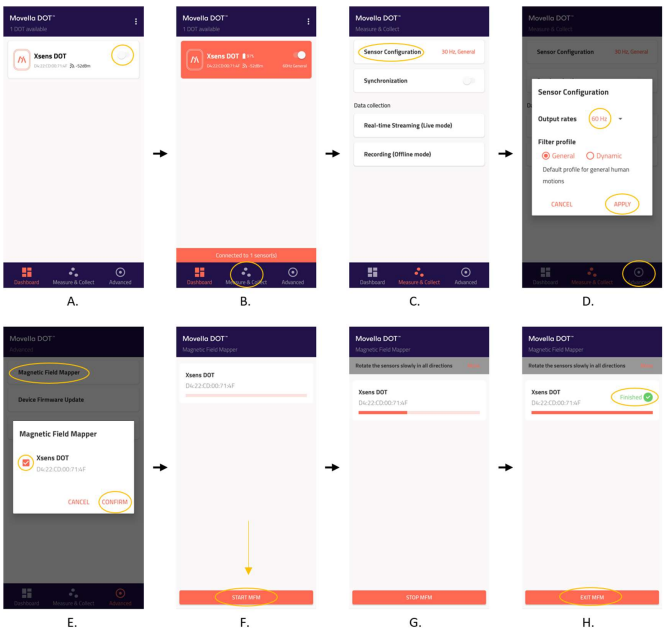
### Steps for Advanced Calibration
Follow these steps to perform your initial advanced calibration using the **Movella DOT mobile application**:
1. **Download the Movella DOT App**: Download the app from [**Google Play**](https://play.google.com/store/apps/details?id=com.xsens.dot.android&hl=en_US) or the[**App Store**](https://apps.apple.com/us/app/movella-dot/id1500356542) onto your smartphone or tablet.
2. **Turn on Bluetooth**: Ensure Bluetooth is enabled on your mobile device.
3. **Power on the NeckCare Sensor:**
- Press and hold the ON/OFF button on the sensor for 2 seconds.
- The indicator light will turn **green**, then flash **yellow**, indicating the sensor is ready to connect.
4. **Open the Movella DOT App**: Launch the app on your mobile device.
5. **Connect to the Sensor**
- - Once the app is open, connect to the NeckCare sensor.
- The LED on the sensor will flash **green** once every 10 seconds after a successful connection.
6**. Sensor Configuration**
- - - Go to the **Measure & Collect** tab in the app.
- Select **Sensor Configuration** and ensure the output rates are set to **60 Hz general**.
- Press **Apply** to confirm.
7\. **Magnetic Field Calibration**
- - Navigate to the **Advanced** tab.
- Select **Magnetic Field Mapper** to start the calibration process.
- Rotate the headgear slowly in all directions around its axes until the progress bar fills up.
8\. **Complete the Process**
- - Once finished, press **Exit MFM** to end the calibration process.
- Disconnect the sensor through the **Dashboard** in the app.
- Turn off the NeckCare sensor by pressing and holding the ON/OFF button for 3 seconds until the indicator light turns off.
After completing the calibration, you can **close the app.**
### ⚠️ Important
- **Transport Mode**: The sensor is shipped in "Transport Mode" and must be plugged into a charging cable to activate prior to its first use.
- **Calibration Environment**: It’s important to perform the calibration in the environment where the measurements will be taken to account for local magnetic disturbances.
- **Future Use**: If you move to a new location or notice any discrepancies in readings, repeat the advanced calibration.
This initial calibration ensures your NeckCare sensor is properly set up to provide accurate measurements. After this, you only need to perform **basic daily calibrations** through the NeckCare platform whenever you reconnect the sensor.
---
- [Practice Marketing Materials](https://help.neckcare.com/practice-marketing-materials?hsLang=en#main-content)
- [NeckCare Home](https://help.neckcare.com/practice-marketing-materials?hsLang=en#neckcare-home)
- [For Patients](https://help.neckcare.com/for-patients?hsLang=en)
- [Getting Started](https://help.neckcare.com/getting-started?hsLang=en)
- [Setup & Requirements](https://help.neckcare.com/setup-requirements?hsLang=en)
- [Sensor Calibration](https://help.neckcare.com/sensor-calibration?hsLang=en)
- [Hardware & Device](https://help.neckcare.com/hardware-device?hsLang=en)
- [Platform Navigation](https://help.neckcare.com/platform-navigation?hsLang=en)
- [Assessments](https://help.neckcare.com/assessments?hsLang=en)
- [Exercises](https://help.neckcare.com/exercises?hsLang=en)
- [Results & Reporting](https://help.neckcare.com/results-reporting?hsLang=en)
- [Administration](https://help.neckcare.com/administration?hsLang=en)
- [NeckCare Home™](https://help.neckcare.com/neckcare-home?hsLang=en)
- [Troubleshooting](https://help.neckcare.com/troubleshooting?hsLang=en#main-content)
- [Bluetooth](https://help.neckcare.com/troubleshooting?hsLang=en#bluetooth)
- [FAQ](https://help.neckcare.com/faq?hsLang=en)
- [Maintenance](https://help.neckcare.com/maintenance?hsLang=en)
- [Safety & Compliance](https://help.neckcare.com/safety-compliance?hsLang=en)
[](http://app.neckcare.com)
support@neckcare.com
Copyright © 2025, NeckCare